




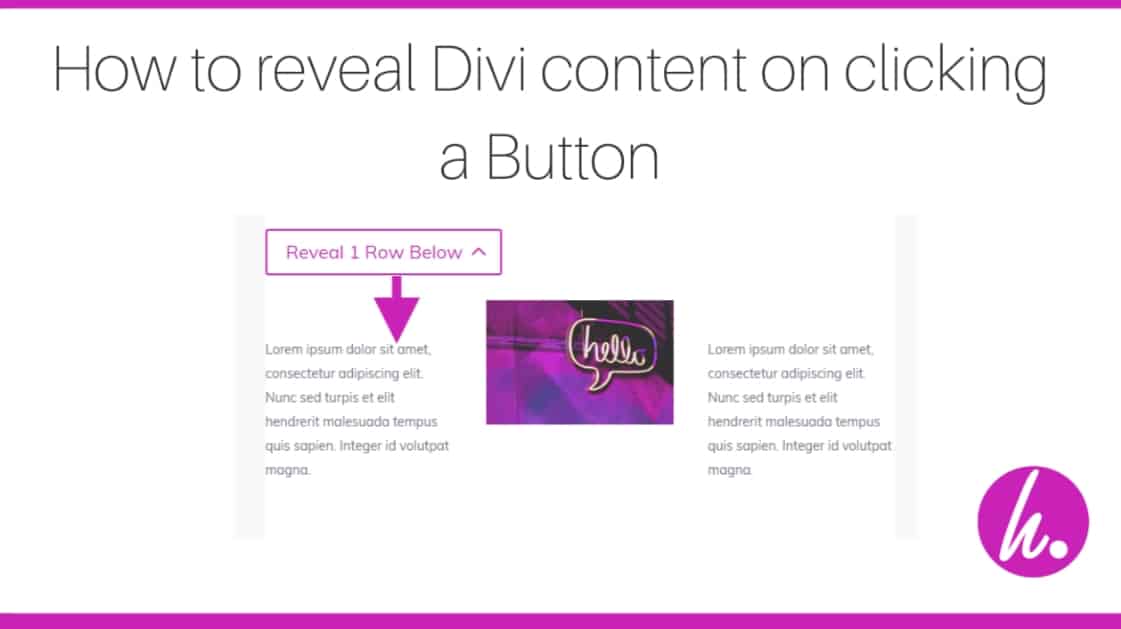




I recently saw a request on the Divi Web Designers Facebook group asking how to reveal Divi content when you click a button. This article from DivNotes works great if you only want one button and one have one section, row or module you want to reveal on the page.
But what do you do if you want more than one button/section on your page, with each button revealing different content? Also, how can you hide content revealed by other buttons each time you click one, giving a toggle effect?
In this tutorial, I’ll give you a bit of jQuery magic that lets you:
1) Create a button that reveals/hides specific content when clicked
2) Hide any content revealed by other buttons clicked previously
First, let’s take a look at the final result…
The final effect
Lorem ipsum dolor sit amet, consectetur adipiscing elit. Nunc sed turpis et elit hendrerit malesuada tempus quis sapien. Integer id volutpat magna.

Lorem ipsum dolor sit amet, consectetur adipiscing elit. Nunc sed turpis et elit hendrerit malesuada tempus quis sapien. Integer id volutpat magna.
Lorem ipsum dolor sit amet, consectetur adipiscing elit. Nunc sed turpis et elit hendrerit malesuada tempus quis sapien. Integer id volutpat magna.
Lorem ipsum dolor sit amet, consectetur adipiscing elit. Nunc sed turpis et elit hendrerit malesuada tempus quis sapien. Integer id volutpat magna.
Lorem ipsum dolor sit amet, consectetur adipiscing elit. Nunc sed turpis et elit hendrerit malesuada tempus quis sapien. Integer id volutpat magna.

Lorem ipsum dolor sit amet, consectetur adipiscing elit. Nunc sed turpis et elit hendrerit malesuada tempus quis sapien. Integer id volutpat magna.
Lorem ipsum dolor sit amet, consectetur adipiscing elit. Nunc sed turpis et elit hendrerit malesuada tempus quis sapien. Integer id volutpat magna.
Lorem ipsum dolor sit amet, consectetur adipiscing elit. Nunc sed turpis et elit hendrerit malesuada tempus quis sapien. Integer id volutpat magna.
How to do it
It’s pretty simple with only a small amount of jQuery and CSS classes applied to the Sections, Rows and button modules. This method enhances to the DiviNotes method. You can create multiple SECTIONS, each with its own button and one or more rows/modules that are revealed when you click the button. In addition, the code closes any other rows/modules opened by other buttons on the page giving the ‘toggle’ effect.
Create a section
Create a section on your page and give it a CSS class of reveal_section. To do this, go to the Divi settings for the section, then in the Advanced tab add ‘reveal_section‘ in the CSS class box like this:

Add a Button
Create a new row in your section and add a button to it. Give the button a CSS class of reveal_button. To do this, again go to the settings for your button module and in the Advanced tab add ‘reveal_button‘ in the CSS class box like this:

Set up the content to reveal when you click the button
The great thing about this method is that you can set up one or more rows or even individual modules within rows that will all be revealed at the same time when you click the button in the same section, giving much greater flexibility for your design.
Add one or more extra rows to your section, add whatever content you want into these rows and then add the class ‘reveal_content‘ to either the entire row/s or the individual module/s you want to reveal when the button is clicked.
Adding the class to a row:
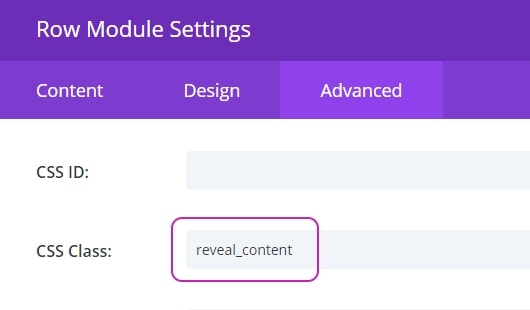
Adding the class to a module:

Repeat as necessary!
You can repeat the process as many times as you like on your page. Create more sections with class ‘reveal_section‘, add a row with a button to each section and give the button the class ‘reveal_button‘. Then add extra content to the section, giving each row or module you want to reveal the class ‘reveal_content‘.
Add the jQuery Code
And below is the jQuery script that does the magic. To load it, you can either:
1) Add it to a Divi code module on the same page as your sections. Make sure to wrap it in a <script></script> tag
2) In your Admin area, go to Divi > Theme Options > Integration and paste it into the box labelled “Add code to the < head > of your blog”. Again, make sure to wrap the code in a <script></script> tag
3) If you’re using a child theme, add the code to a new JS file and enqueue it in your child theme functions.php file
jQuery(document).ready(function($) {

  //Hide all content to be revealed
  $('.reveal_content').hide();

  //Create the click event for each reveal button
  $('.reveal_button').click(function (e) {

  //Prevent the default button action (i.e. redirecting to a url)
    e.preventDefault();

    //Get the parent section for the button clicked
  $parent_section = $(this).closest('.reveal_section');

  //Remove the opened class from all other buttons
  $('.reveal_button').not(this).removeClass('opened');

  //Close all content in other sections
  $('.reveal_section').not($parent_section).find('.reveal_content').fadeOut('slow');

  //Hide/Reveal the content in the same section as the button clicked
  $(this).addClass('opened');
  $parent_section.find('.reveal_content').each(function() {
    $(this).slideToggle();
  }
  )

  });

  }
)
Add CSS Styling for the button
Similar to the DiviNotes method, let’s add some CSS to switch the button icon to indicate whether it’s opened or closed. We’ll also force the button icon to display regardless of your default Divi button settings and pad the button out so the icon is nicely inside the boundary of the button, making it look a lot cleaner. Here’s the CSS for this:
<style>
.et_pb_button.reveal_button, .et_pb_button.reveal_button:hover {
    padding-right: 40px!important;
}

.reveal_button:after {
    display: inline-block!important;
    opacity: 1!important;
    margin-left: 0!important;
    content: '\33';
    transition: all 0.5s ease;
}
.reveal_button.opened:after {
  content: '\32';
}
</style>
Rounding up
So there you go. You can now add multiple areas on your page that are opened by different buttons and toggle any other opened areas closed at the same time. Simply add the jQuery script, then create as many sections/buttons/rows/modules on your page as you like with the classes shown below:

Each button only reveals/hides content within the same section that has a class of ‘reveal_content’. Pretty awesome huh?
If you found this useful, leave us a comment!
Download the layout
After a few requests for this, I’ve bundled the demo sections above and the jQuery code (in a code module) into a downloadable layout. Click HERE to download it.
About the Author

Ed Solman
Entrepreneur, Blogger and Website Developer/Designer. Passionate about helping people and businesses develop and grow. Daredevil sportsbike enthusiast.

Dear Ed
I have 4 modules with buttons in a row and they all are in the same section. Each button shows a hidden module on click. How can I force closing previous displayed module instead of hiding whole section? I am a complete Newbie and I do not really understand your code, sorry for this.
Best regards,
Matthias
Hi Matthias, I don’t think this code will work for your particular scenario, but it is possible. You would need some different jQuery so each button could target the specific modules you want to open/close. I’ve done something similar in another website before, so can try to help if you can send me a link.
Any chance you could forward this code – I have 3 buttons same section – multiple modules for each to close and or reveal – Button 1 is default to on – show those modules, then close 1 (and leave 3 off ) to show 2 etc.
I see how I can name each one etc. It is the logic to close modules within a section I am missing…
Im trying to do exactly the same functionality could i have that Jq script also
Thank You! 🙂
Where do I need to insert the jQuerry?
Sorry I missed that bit. I’ve now added instructions for you.
I added the css to Divi > General > Custom CSS, and only the icon beside the button is shown, the slide effect is not appearing
Hey there, do I put the magic code in the section or each row?
Apologies Amberly, I realised I didn’t tell you where to put the code! I’ve now corrected that. Let me know if you have any trouble.
Hi Ed,
Thanks for the tutorial!
I implemented the code as described in your blog post 🙂
When I add a section, and add one row within this section it works perfect.
When I add another row in the same section both the buttons opens both the hidden “reveal_content” classes when I click any of the buttons.
Any idea how I can solve this?
Very Kind Regards,
Per
I think you probably need to use separate sections for each, rather than more rows in the same section. I’ve now added the demo sections to a downloadable layout so you can see how they work. Give that a try, thanks Ed
Does this exist anywhere as a downloadable layout or module?
It does now! Good idea Liz, I’ve now added the downloadable layout including the jQuery code. Thanks, Ed
Hi
This works perfect to hide/reveal rows, as I was looking for, but I also want to have a hover transformation on elements inside a row of reveal. The code seems to mess with the inbuild functionality for this option in Divi?
I set the image to grow to 110% on mouseover but nothing happens when opening the row and the over hovering over it.
See this test site:
https://framsikt.no/arbeidsside/
How should I fix this?
Hi
Thanks for a very nice tutorial. This is almost what I wish to achieve. However, it would be nice if I don’t have to click a button but that the row is revealed on mouse over. Very much the same as what happens with the menu buttons as on this website:
https://iconix.co.za (Not a wordpress site) But I really like the effect.
You could do that but would need to use javascript/jquery to add the hover function to the buttons. You should also remember that hover effects don’t really work on mobile.
Nice, it works with rows and modules but I’d like to do it with sections.
Like if I click the link, a section appears and the page scrolls down to show the section.
Is it possible?
Thanks!
Can I do this with a link, instead of a button?
Never mind, I figured it out. Thanks!
Hey Ed, I love this code! My one question is, right now when I reveal the section, the arrow on the button turns up, but if I close the section the button stays up and doesn’t turn down. How do I get it to return to the original arrow state?
Is there a way to reveal different content within the same module space that replaces the other content when clicking on different buttons?
Thanks so much for this. I’m using the reveal content for posts that don’t have the usual blog format i.e. text and commentary – but simply display various media items such as youtubes, images and sliders. It works beautifully, but is there a way to close the reveal after viewing the items? Like clicking on an X icon or even better just clicking to close on the page.
so well explained, thank you so much!
Thank you for this code and tutorial – really nice and works perfectly.
I had a client that wanted to reveal either an enquiry form or an application form depending upon what the website visitor clicked on so your solution works for that scenario.
Hi there, I am using this fantastic solution to making nice looking archival media posts – no text or commentary, just media such as videos and images. However when I try to use this hide/reveal to open a hidden divi carousel module the carousel opens but the carousel settings don’t work. Any idea why? It works fine on other modules such as flip-boxes or pop up videos but not on this carousel module (Supreme Carousel Module). Asking you before I ask the plugin developer because as a hobbyist blogger I might be missing something obvious. Thanks, Isla
Thank you for making this so easy! Q: I cannot get this to work on a post. Am I doing something wrong or is there a different way to handle hidden content on a post?
Hello! Nice tutorial
I follow the steps, works when i click and show hidden content, but then hidden the content again (even using your template)! hides instantly when appears…… any tips?
Hey there, great tutorial.
I’m wondering how I would apply this to a circular navigation menu that I want to change page content without loading a new page?
I’m assuming I’d have to expand the css to give each button its own identifier?
Here’s the tutorial I used from Divi for the segmented semi-circular menu.
https://www.elegantthemes.com/blog/divi-resources/how-to-create-a-segmented-circular-menu-using-divi-blurbs#respond
Great solution. I have found that it does conflict with the Guest Author plugin. If I do not use this plugin it all works fine. I am having trouble with multiple row reveals even when I put them in different sections they bounce open and closed.
Hey Ed.
Have been trying to integrate this in my website.
The problem I am having is that when I click the button for the content to be revelaed, the content does not stay open. It opens and then automatically closes. Have you seen this before?
This is awesome, thanks so much!
I have 1 question, I have 3 buttons and 3 sections and everything works perfect, Is there a way to show the first section by default? and then hide it on a click?
Hi! Would it be possible to show the contents of the first button when it is first loaded? As a starter?
Good stuff. My button doesn’t change on reveal/close. See the “Lucky Dip” button at bottom of my site.
the galaxy.com
I figured out how to make buttons open to different content. Is there a bit of code that can be used for the second click to close all currently open rows?
Hi, Ed. thanks for the excellent code! I have it working on my DEV site…question, is there a way to enable the reveal within side-by-side columns? Ex: a 2-column row, with text & button on the left, and the reveal on the right? just thinking of reducing scrolling, for those viewing with larger screen resolutions, which, unfortunately, there are too many of in 2020. 🙂
Cheers!
Thank you so much for this – solved a problem for me, was easy to follow and works perfectly.
Nice tutorial!
Is it possible to change the button text so it says one thing when is opened and another when is closed?
Thanks 🙂
wow beautiful but if I wanted to get the same effect on two columns of the same section and two different buttons?
This is great, but it’s only halfway working for me! When I click my button, the row/module is indeed revealed, but then immediately closes! Any idea what dumb mistake I may have made?
Thank you, this is really nice!
Hi,
I’m using the function described above but I experience following issue: In the reveal content are several modules incl. one which is a Woo Image. When un-revealing the content only the small thumbnails appear but not the large one on top. The large image only appears (and this is not a joke) when I change two times from my internet explorer to any random other program or whatever I run on my dektop. Only then the large thumbnail is suddenly there.
Any ideas?
Thanks,
Markus
Hey, following up to what Matthias Primetzhofer was mentioning. We have 6 cards and each card should reveal it’s own content below.
Our issue is that the next revealed content doesn’t hide the previous.
Any chance we could work together on achieving this ?
Thanks for the article. Is there any way to make this apply to individual modules rather than entire sections? You’ll notice on my site (www.buildingmychurch.org/faculty-staff) that I have a button under each of our staff members that I would like to reveal content below it when clicked. And then the next staff member’s button would need to reveal that teacher’s content AND close the content of the first staff member.
Any way to do that?
It does apply to modules, but only if the module is in the same section as the button. There is another way to do this that would work better and be more flexible, so I might update this if I get a moment.
I followed your instructions and made sections rows and buttons and added the jQuery as well. but it doesn’t work at all.
The button redirects the home page only. what’s your real way to do this.
I’m not sure what the issue is Zeshan. It should work fine, others seem to have got it working OK. Do you have a link you can share?
Hi,
I have used this method now successfully to drop down a row with 4 buttons in it.
I have two such sections and I can apply it individually to each row but cannot do so with two sections independently needing to be dropped by different buttons.
I have changed the CSS code to reflect the two sections and I have added the jquery code to the page twice. I suspect that this is where I am going wrong but don’t know why??
Can you help.
I think the issue is that the code assumes you only have one button that open/closes a row, column or module WITHIN THE SAME SECTION as the button. If you want two buttons to open/close two different things and they are both in the same section, it won’t work.
There is another way to implement this instead which would work. You would need add an ID to the element/s you want to reveal, then add that ID in the URL field for the relevant button. In the jQuery code, you then extract the ID from the button’s URL value when it’s clicked, find the element with that ID and reveal it. The code probably also needs adjusting to close other elements that are already opened, assuming you still want to do that. Any opened elements would need a specific class adding to them (e.g. reveal_opened) so you can target them in JQuery and close them before opening the new element. Hope that makes sense!
I can try and update the code if I get chance to make it more robust, so it would work in any situation.
Hi! Thank you for this tutorial! I just have a small glitch with it. I tried this to hide/reveal a contact form but when i press submit on the contact form, it shows another contact form for some reason. Any ideas regarding this?
If you’ve literally set it to show hide the contact form module itself (rather than the containing section, row or column), I guess that might cause an issue. THe contact form hides itself when you click submit normally, so my code might override that and prevent it hiding itself I guess?
Very nice Ed. I see you’ve been active on this blog post lately which makes me very happy! I’m trying to do something similar to the cases where you mention, “I might update the code if I get a minute”
I’m not a coder so I’m trying to decipher this your comment about adding an #ID and using jquery to extract/modify/reveal.
If you get back to this post, may I add that it would be great to have a code that does the following:
1. exactly what you have already plus,
2. multiple buttons (we could use ID’s or multiple classes “reveal_section1/reveal_button1/reveal_content1 … 2/2/2…3/3/3”
3. A way to use a menu item to target this section, reveal it, and scroll to it with #ID
I’m going to try to find a way to do this but I have a feeling you would be much quicker and more efficient in the code.
I hope you can help! Thanks again for the great post.
T.
Hope you can update soon! Looking forward to your thoughts on multiple hide/show divs each with their own button. Also would be cool if they could be scrolled to with the button press (useful especially for mobile device layouts).
Thanks!
Thank you very much! Worked like a charm.
Hi thanks for the tutorial, its work. but can i know how to make the content is open at default.
For example i got 4 sections like i want 1 of the section is open by default, and the rest is closed/hidden.
Any idea?
thanks in advance.
I placed the code where you suggested. The code then displayed in the section area.
I placed the style where suggested.
I now have an unusable site with this message.
The page you are looking for is temporarily unavailable.
Please try again later.
5daff1ba6aed56b66a0418ecbf5135df 704e2525df50e1a0a4c053cd5bccfeb0 54fe53ccfa6f63b53b087aac8db90da8
Well the unusability mentioned above turned out to be the hosting companies fault.
However the other problem remains. Also the json in the zip file cannot be imported anywhere in the latest version of Divi.
This is amazing! Thank you so much, I will definitely use this on a website very soon 🙂
Thank you so much! You saved my day! 🙂
Hi, thank you for the script and good tutorial. is it possible to nest/cascade the buttons?
Button A
A ————–
Content XYZ
Button B
B —————
Content YYZ
Hi. Thank you for your post. I have included your reveal code in the website i’m working on. The problem i’m having is that I would like to have the row below reveal on hovering my button, but I would like it to stay visible and for the mouse to interact with the revealed content (for example it has a button incorporated into it). Then, I would like it to disappear when I move the mouse outside of that revealed content area. Hope this make sense. Any help is appreciated.Thanks! Newbie here 🙂
Doesn´t work on mobile 🙁
Any way of adapting this so it switches between two different content blocks?
This is very helpful, thank you.
Do you have any thoughts on how to change the text of the button, depending on whether the hidden section is hidden or revealed? E.g., “Show more” and “Show less” are two button texts that come to mind.
Can jQuery, for example, change text in an element?